Teams
Teams group members and service accounts together and control what repositories they can access and what they can do. A member's effective permissions are the union of all their teams' permissions.
Overview
Every member and service account belongs to one or more teams. Teams define:
- Which permissions are granted (e.g. view packages, manage packages, change repository settings)
- Whether those permissions apply to all repositories or only selected repositories
There is no way to explicitly deny a permission — access is granted by a team or it isn't. If none of a member's teams grant a permission, that action is denied.
Built-in teams
Every organisation has two built-in teams that cannot be removed:
- Organisation Administrators — full control over the organisation including managing members, teams, billing, and all repositories.
- Everyone — automatically includes all members and service accounts. Useful for granting read access across the whole organisation.
Custom teams
Free and Starter plans are limited to one custom team. Professional plans can create as many teams as needed.
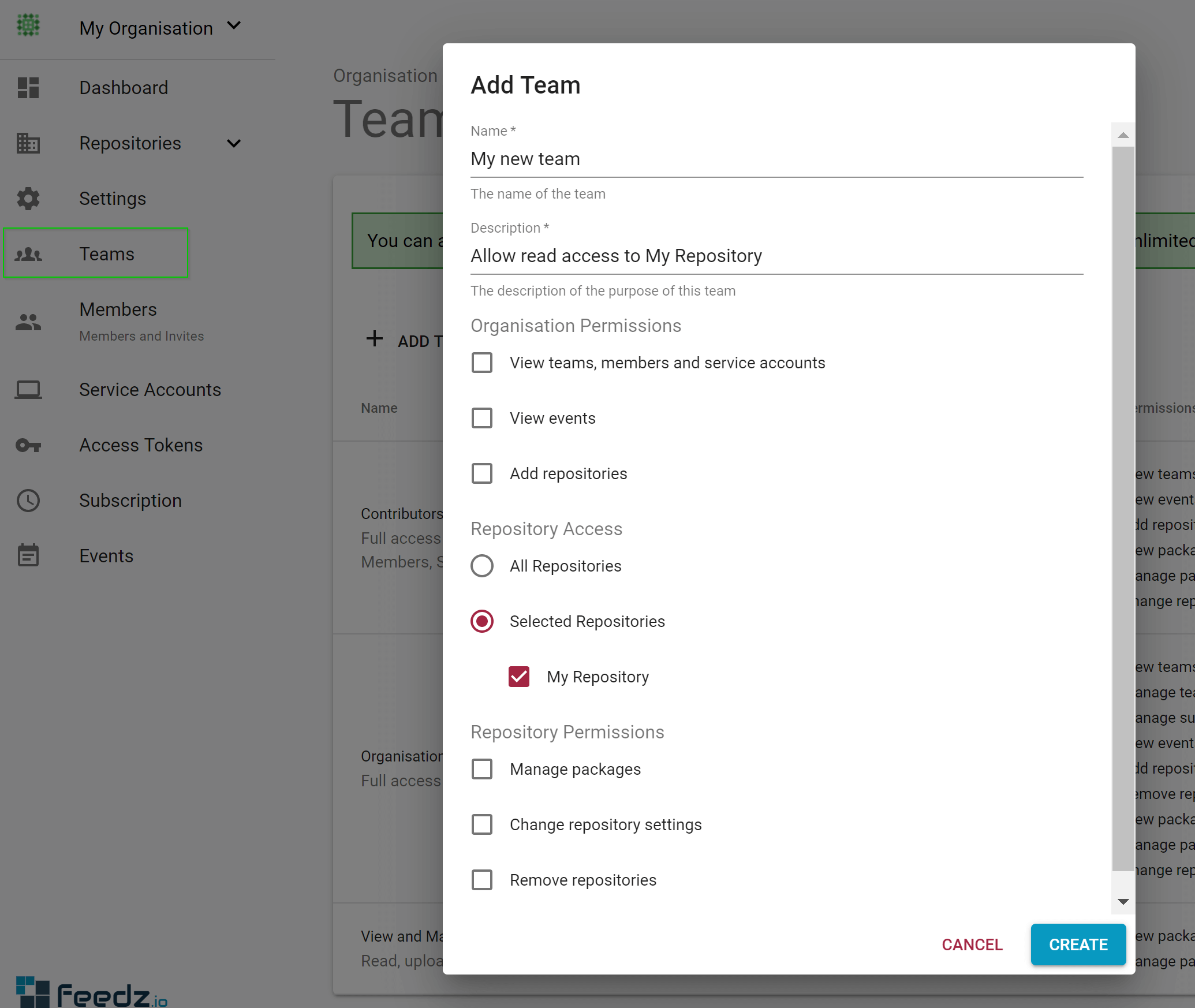
To create a custom team, go to the Teams section in your organisation settings and click Add Team. You can then configure permissions and add members.
How permissions combine
A member or service account receives the union of all permissions across all their teams. For example:
- Team A grants View packages on repository
main-feed - Team B grants Manage packages on all repositories
- A member in both teams can view and manage packages in
main-feed, and manage packages in every other repository
To grant read-only access to a single repository, create a team, select Selected Repositories, choose the repository, and leave all permissions except View packages unchecked.