Members
Members are users who have access to your organisation. A user can be a member of multiple organisations simultaneously.
Inviting members
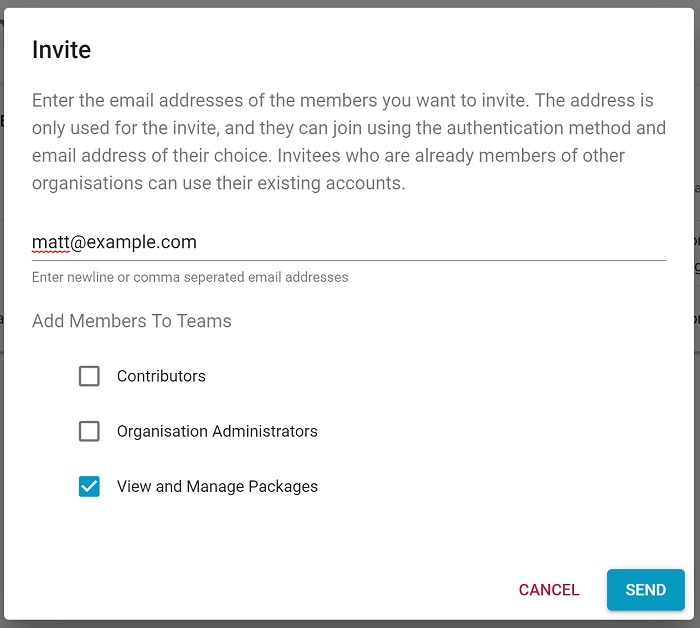
Members are added by sending them an invite from the organisation members page:
- Click Invite Members
- Enter one or more email addresses
- Select the teams they should be added to when they join
- Click Send Invites
Each invited user receives an email with a link to set up a new account or link their existing account to your organisation. They are automatically added to the selected teams on joining.
Members cannot be added directly by specifying credentials on their behalf - they must accept the invite themselves.
Teams
Members belong to one or more teams. Teams control which repositories a member can see and what access level they have to those repositories and the organisation itself.
A member's effective permissions are the union of all permissions across all their teams. Refer to the teams documentation for full details on how permissions are combined.
New Member Rules
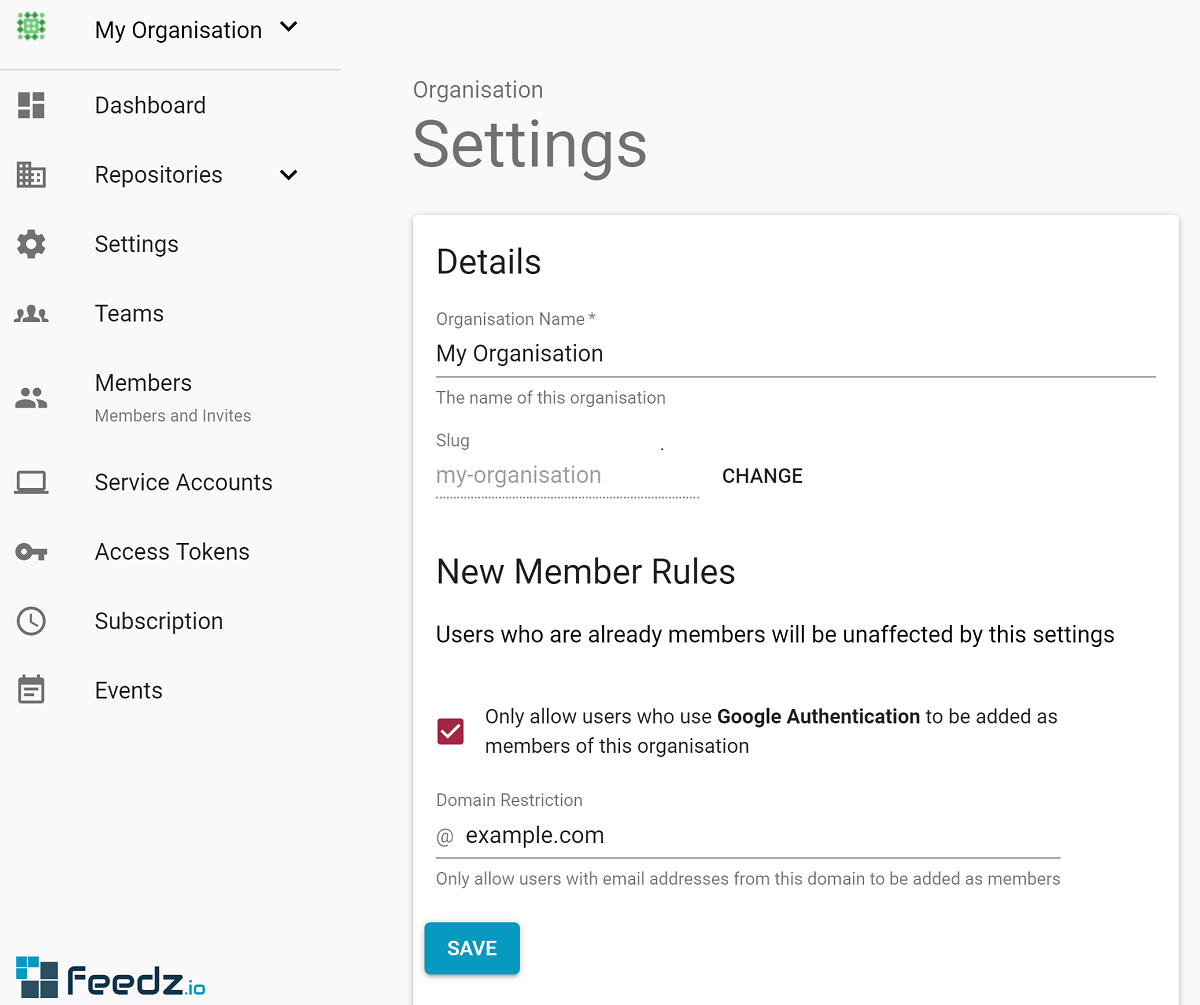
From the organisation settings page, an administrator can restrict which users are allowed to join the organisation. New Member Rules can:
- Require new members to authenticate using Google
- Optionally restrict sign-ups to a specific Google Workspace domain (for example,
yourcompany.com)
New Member Rules only affect users joining after the rule is set - existing members are not affected.
Removing members
Members can be removed from the organisation from the members page. Removing a member immediately revokes their access. Any personal access tokens they created are also deactivated.
If the member was providing access to automated systems, consider migrating those systems to use a service account before removing them.